Table of Contents
1. Understanding the Ransomware Scenario
Ransomware malware typically encrypts part or all of the content of Oracle datafiles. Since Oracle datafiles are generally large (often tens to hundreds of gigabytes), encrypting the entire file takes considerable time. To avoid detection, many ransomware variants only encrypt the file header—usually the first few kilobytes or megabytes of each file.
When ransomware encrypts only the file header, the actual data blocks containing your tables, indexes, and records remain intact. DBRECOVER can bypass the corrupted header and directly read these data blocks to extract your information.
Because the file header is damaged, Oracle cannot recognize the datafile—you'll see errors like
ORA-01122 (database file failed verification check) or ORA-01110
(cannot open datafile). However, we can manually determine the critical metadata
needed to recover the data:
- Tablespace Number (TS#) — identifies which tablespace the file belongs to
- Relative File Number (RFILE#) — identifies the file within its tablespace
2. Identifying Your Encrypted Files
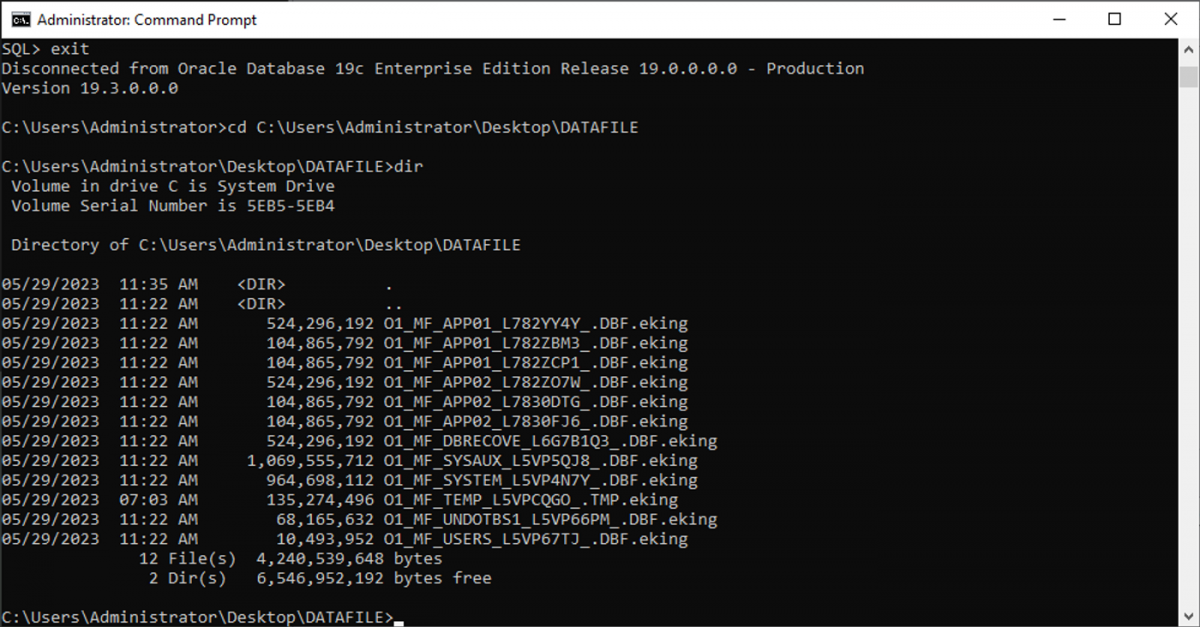
First, take inventory of your encrypted datafiles. Ransomware typically appends a custom extension
to encrypted files. In this example, the files have been encrypted with the .eking suffix:
O1_MF_APP01_L782YY4Y_.DBF.eking
O1_MF_APP01_L782ZBM3_.DBF.eking
O1_MF_APP01_L782ZCP1_.DBF.eking
O1_MF_APP02_L782ZO7W_.DBF.eking
O1_MF_APP02_L7830DTG_.DBF.eking
O1_MF_APP02_L7830FJ6_.DBF.eking
O1_MF_DBRECOVE_L6G7B1Q3_.DBF.eking
O1_MF_SYSAUX_L5VP5QJ8_.DBF.eking
O1_MF_SYSTEM_L5VP4N7Y_.DBF.eking
O1_MF_TEMP_L5VPCQGO_.TMP.eking
O1_MF_UNDOTBS1_L5VP66PM_.DBF.eking
O1_MF_USERS_L5VP67TJ_.DBF.eking
Not all files are needed for data recovery. You can safely ignore:
- TEMP — temporary tablespace, contains no permanent data
- UNDOTBS1 — undo tablespace, not needed for data extraction
- SYSAUX — auxiliary system data, not required for user data recovery
3. Scanning SYSTEM Tablespace for Metadata
The key to recovering data from encrypted files is extracting the tablespace and file number
mapping from the SYSTEM01.DBF file. Even if SYSTEM is partially encrypted, we can
often still read the data dictionary base tables.
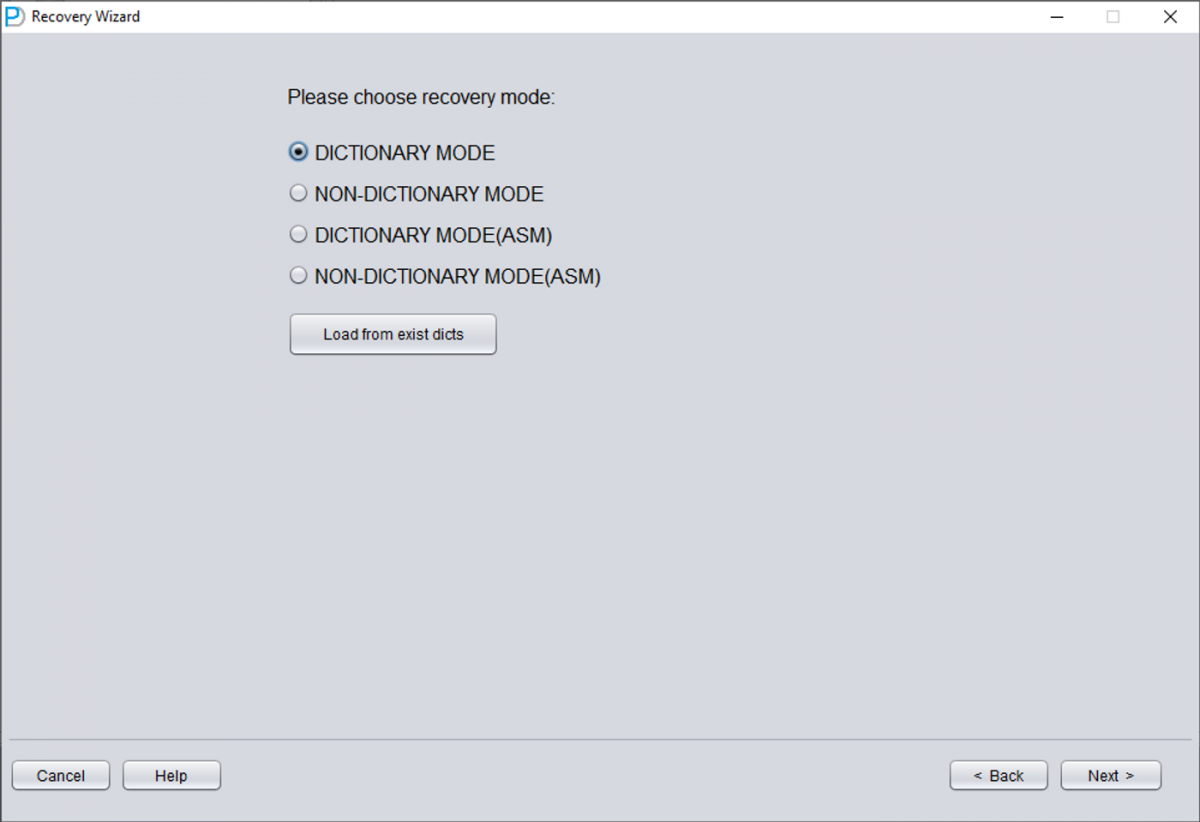
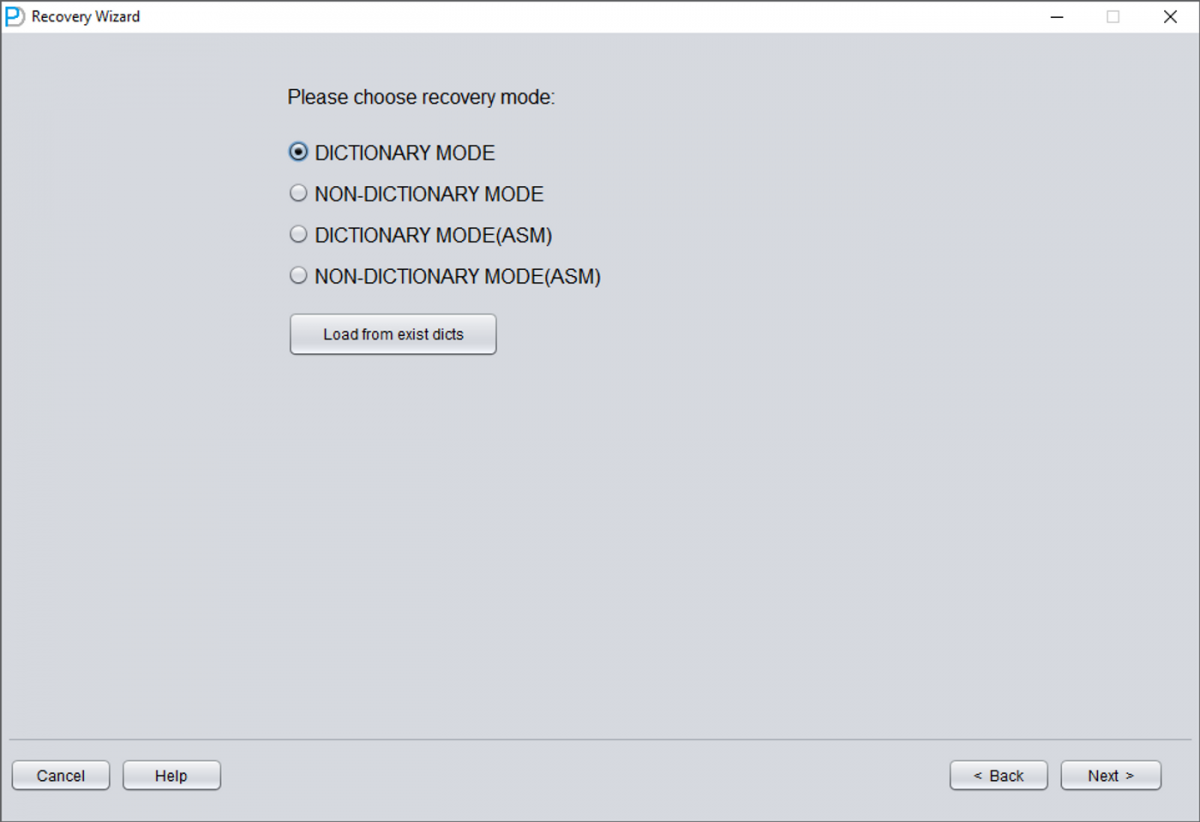
1 Launch DBRECOVER in Dictionary Mode
Start DBRECOVER and select DICT-MODE (Dictionary Mode). This mode allows you to load the data dictionary from the SYSTEM tablespace.
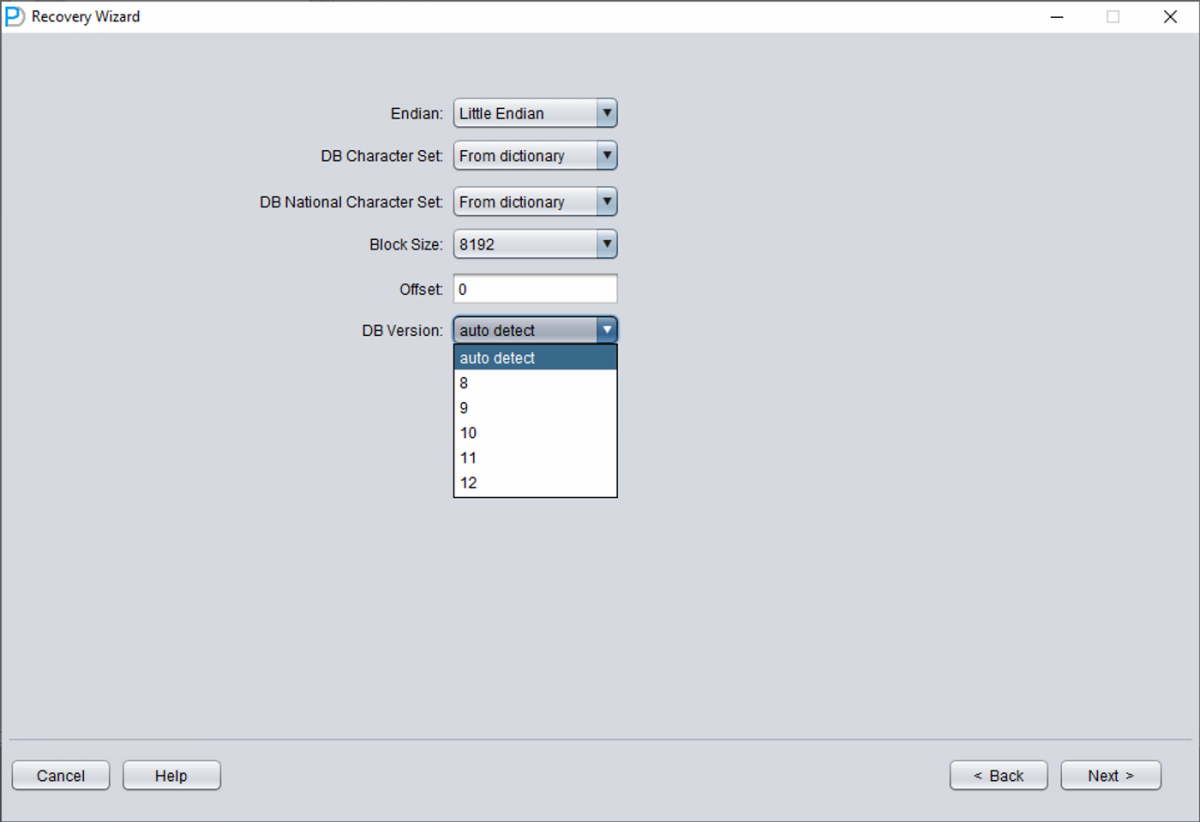
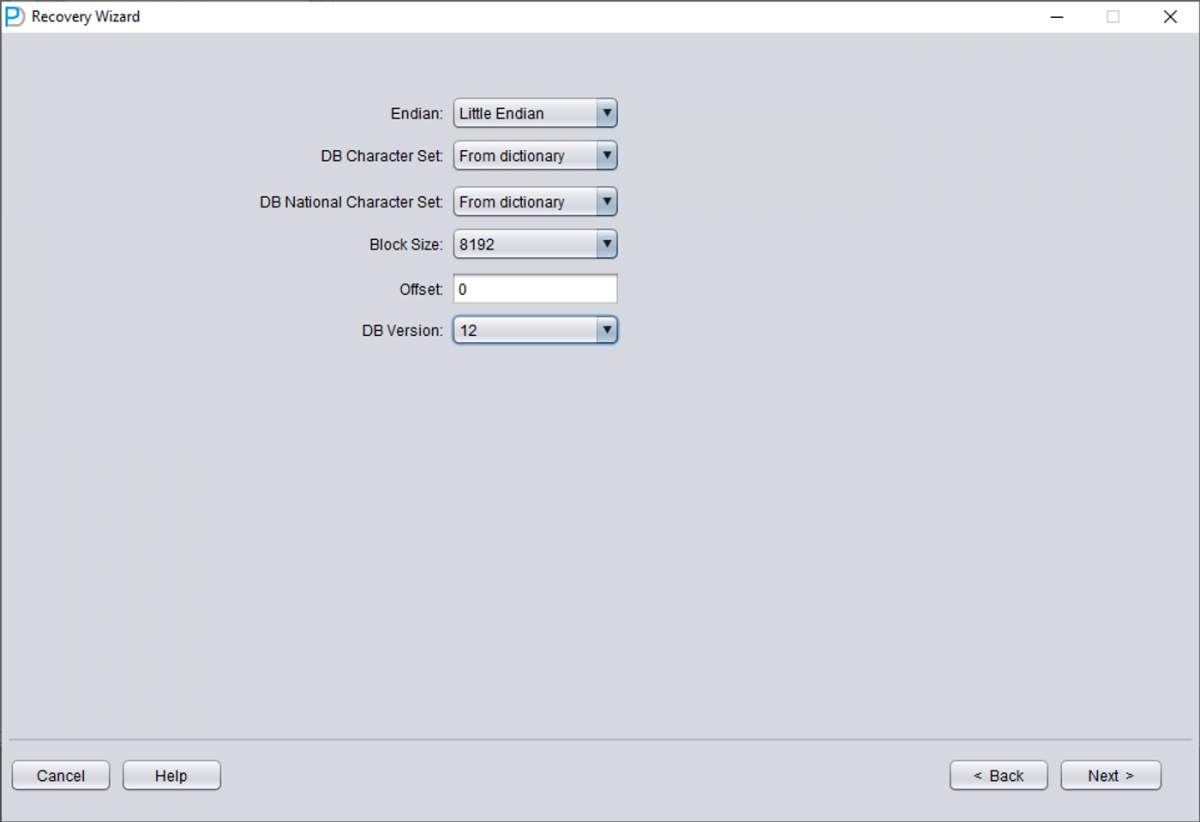
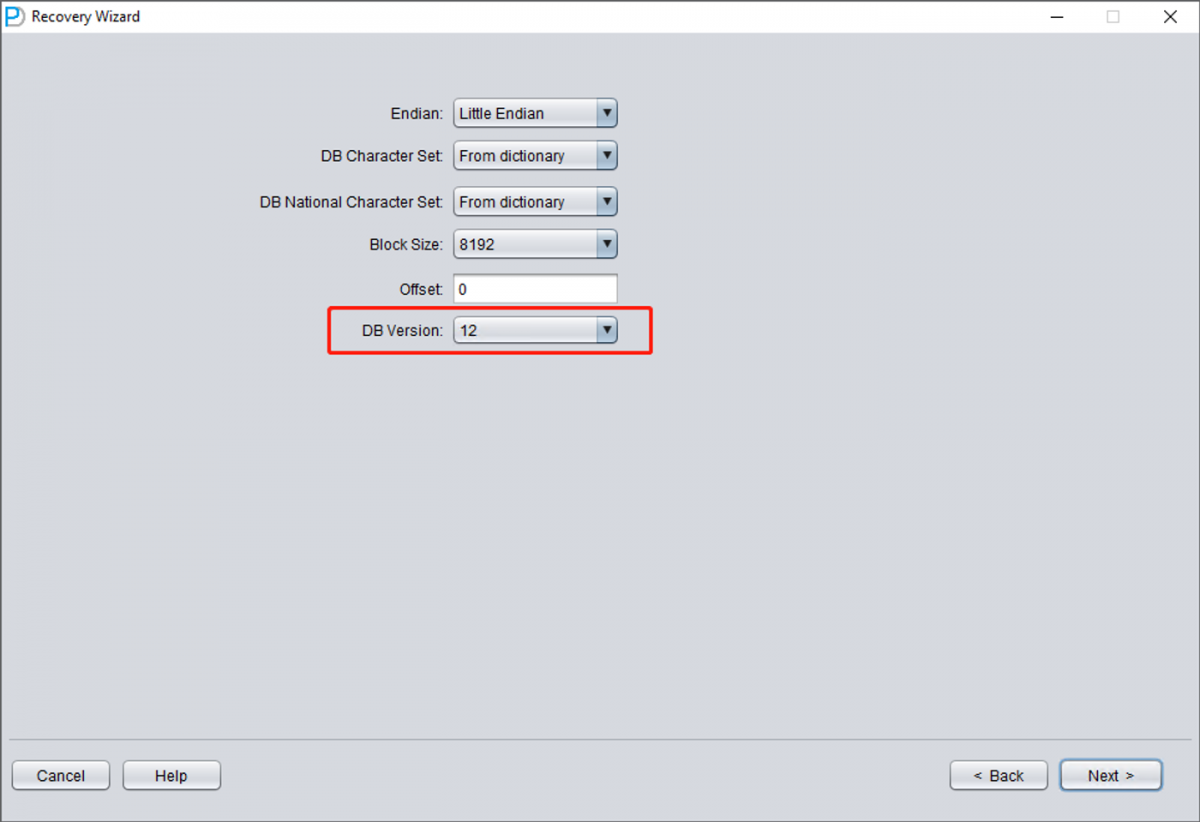
2 Select the Correct Oracle Version
Choose the DB VERSION according to your database. For Oracle 12c, 18c, 19c, 21c, or 23ai, select version 12.
3 Add Only SYSTEM01.DBF Initially
At this stage, add only the SYSTEM01.DBF file. The SYSTEM tablespace always has fixed values:
- TS# = 0 (tablespace number is always 0 for SYSTEM)
- RFILE# = 1 (relative file number is always 1 for SYSTEM)
4 Enable SCAN BASE TABLES Option
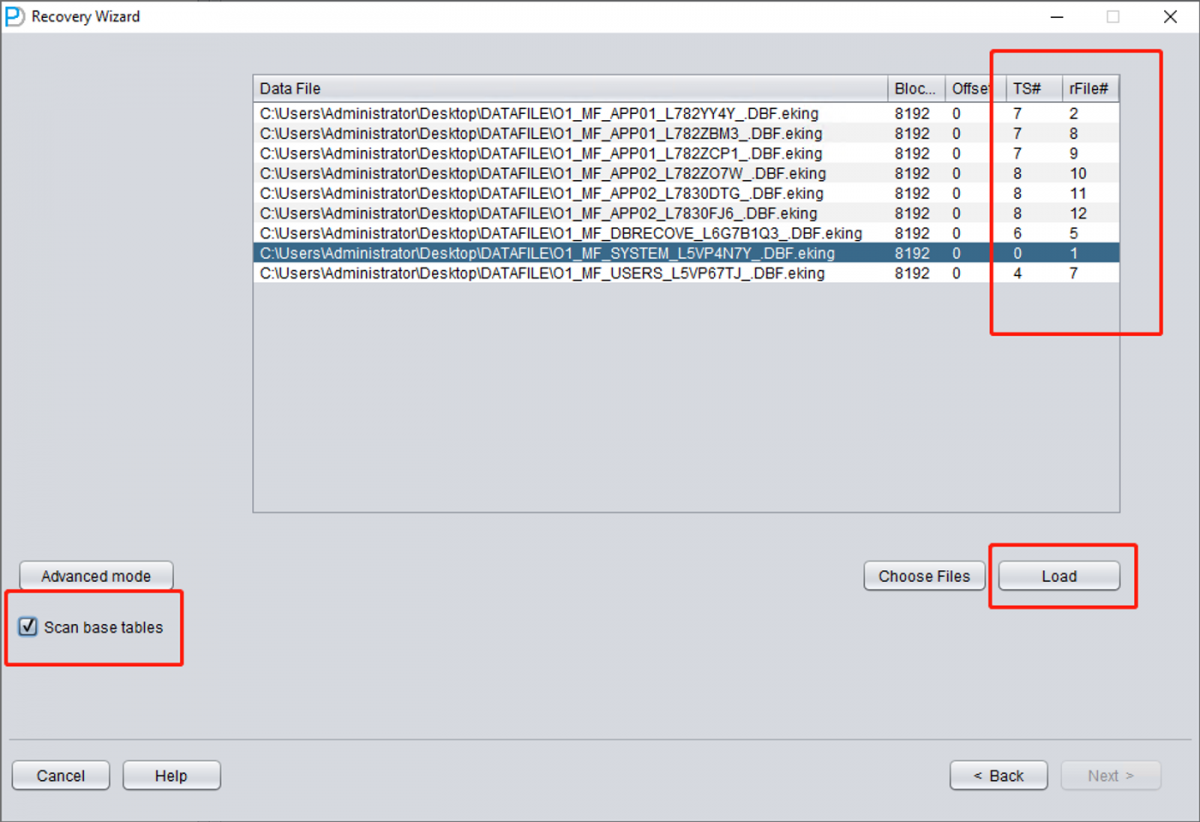
Check the "SCAN BASE TABLES" option. This enables a more thorough scan that can handle damaged situations more effectively.
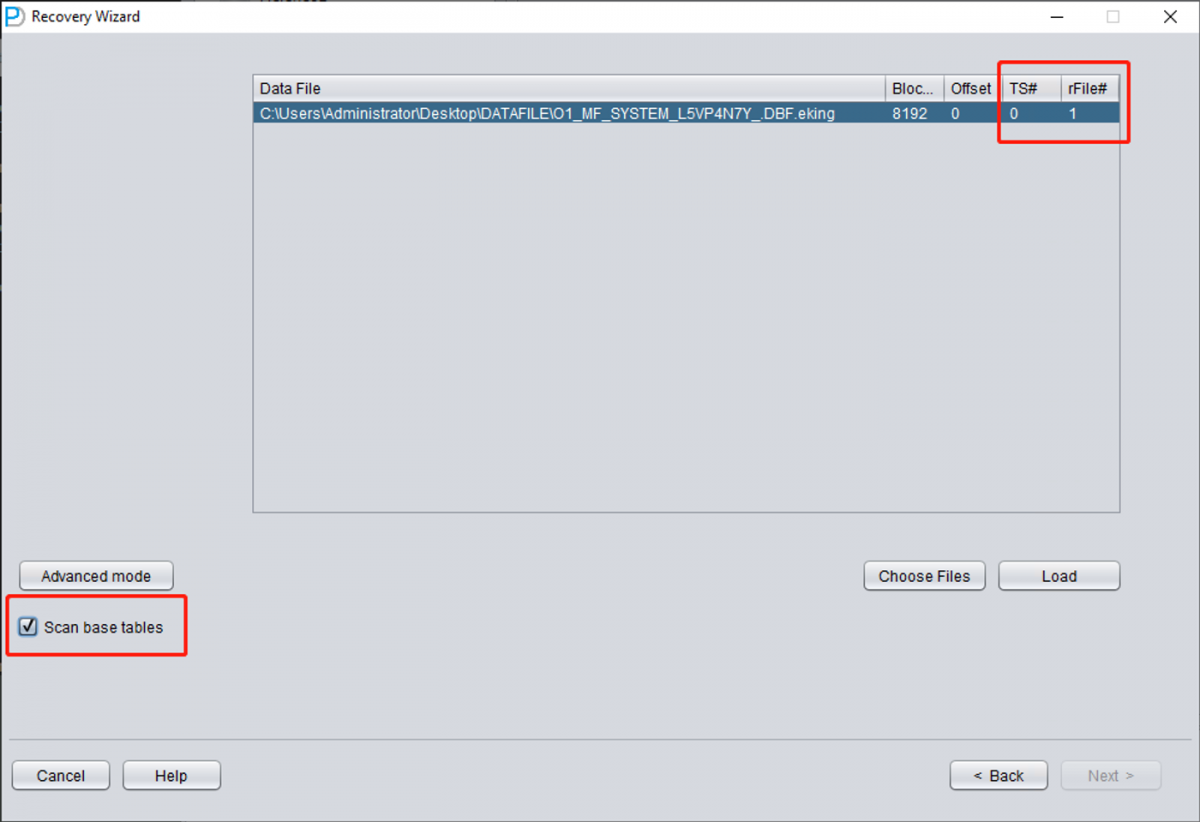
5 Load and Scan
Click the LOAD button. DBRECOVER will scan SYSTEM01.DBF to find the data dictionary base tables.
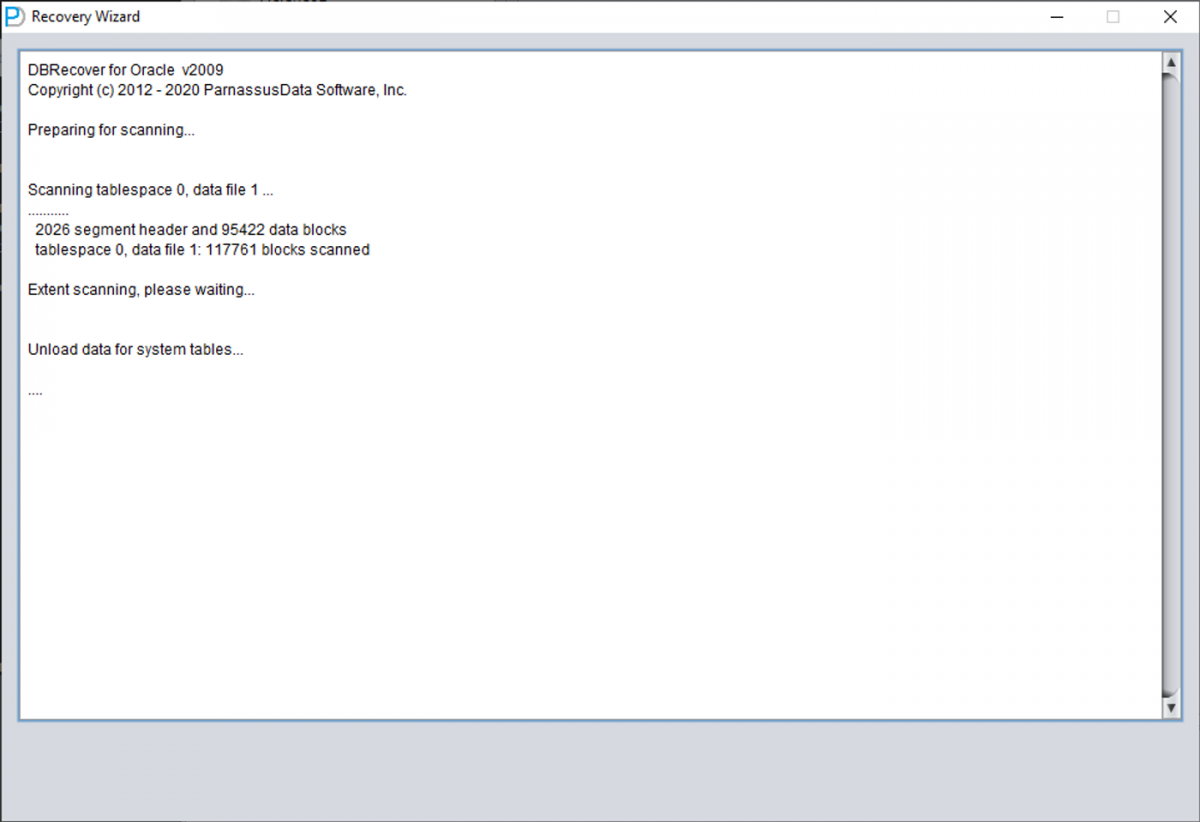
4. Mapping Tablespaces to File Numbers
After loading the SYSTEM tablespace, expand the SYS user node in the tree view. Locate two critical base tables: TS$ and FILE$.
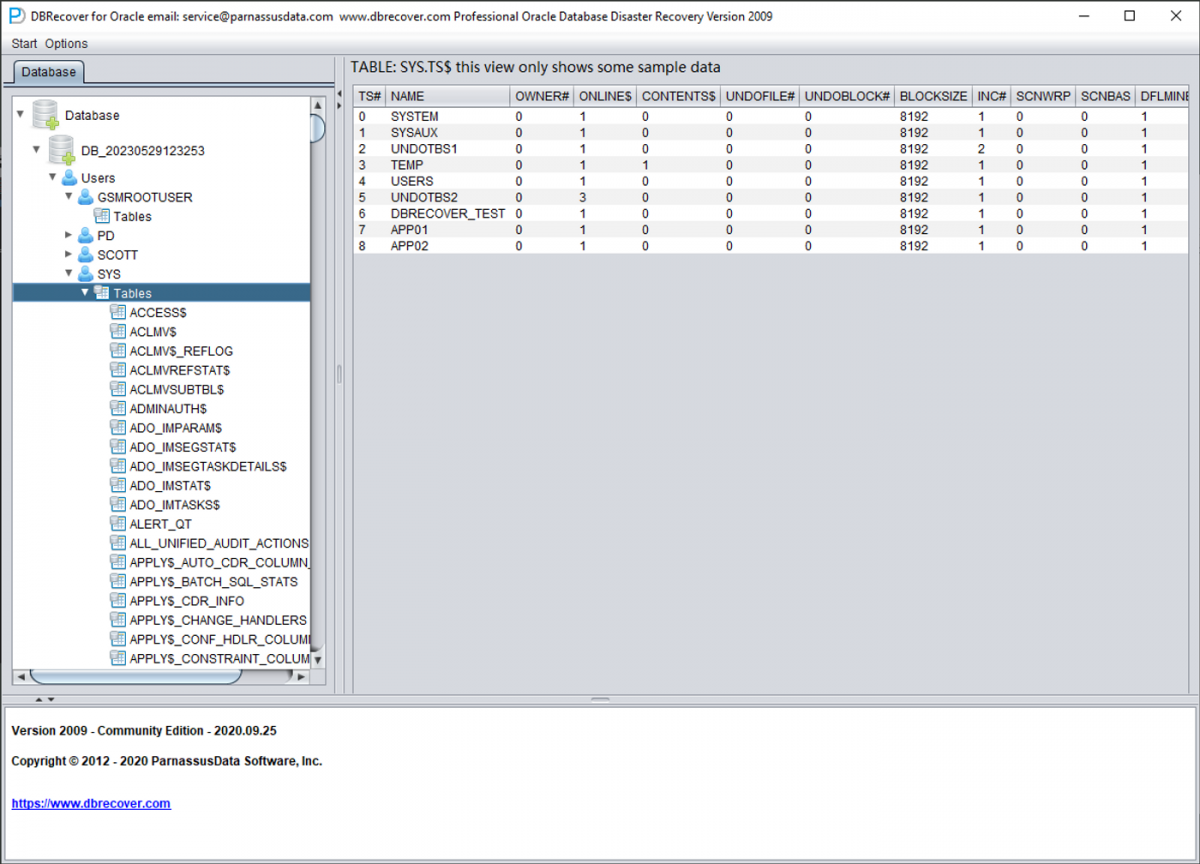
4.1 Reading the TS$ Table (Tablespace Information)
The TS$ table stores tablespace information. The TS# column contains
the tablespace number, and the NAME column contains the tablespace name.
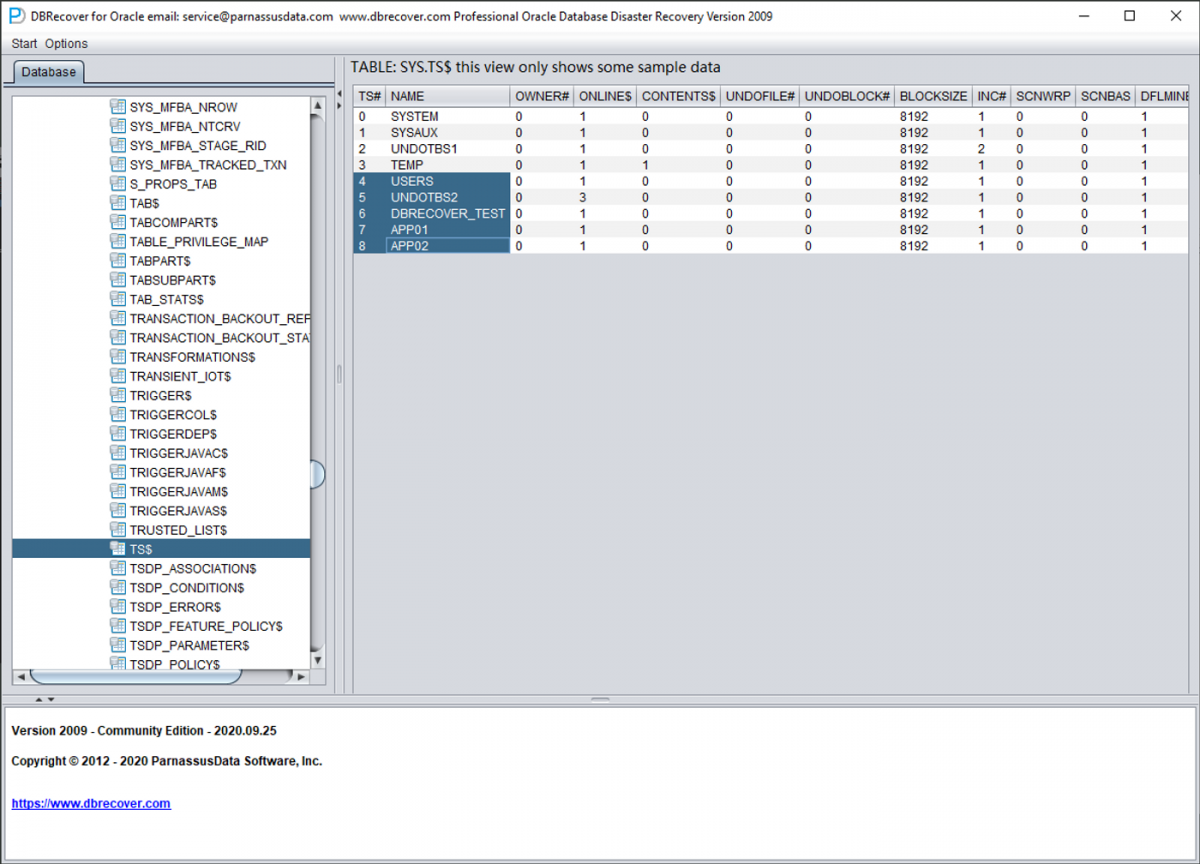
From TS$, we extract the tablespace mapping:
| TS# | Tablespace Name |
|---|---|
| 0 | SYSTEM |
| 1 | SYSAUX |
| 2 | UNDOTBS1 |
| 3 | TEMP |
| 4 | USERS |
| 5 | UNDOTBS2 |
| 6 | DBRECOVER_TEST |
| 7 | APP01 |
| 8 | APP02 |
4.2 Reading the FILE$ Table (File Information)
The FILE$ table stores datafile information. We need the TS# and
RELFILE# columns.
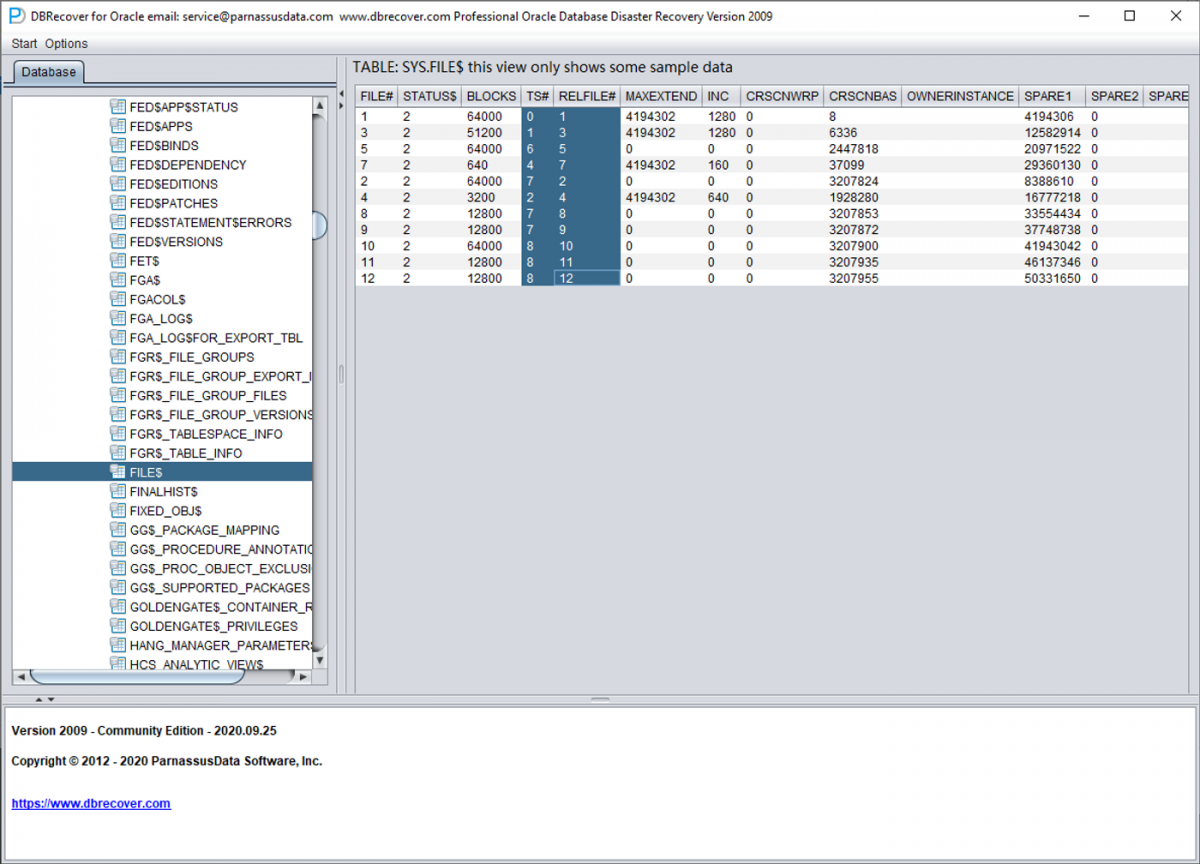
From FILE$, we extract the file mapping:
| TS# | RELFILE# |
|---|---|
| 0 | 1 |
| 1 | 3 |
| 6 | 5 |
| 4 | 7 |
| 7 | 2 |
| 2 | 4 |
| 7 | 8 |
| 7 | 9 |
| 8 | 10 |
| 8 | 11 |
| 8 | 12 |
4.3 Creating the Complete Mapping
By combining data from TS$ and FILE$, and matching with the actual file names, we create the complete mapping needed for recovery:
| TS# | RFILE# | Tablespace | File Name |
|---|---|---|---|
| 6 | 5 | DBRECOVER_TEST |
O1_MF_DBRECOVE_L6G7B1Q3_.DBF.eking |
| 4 | 7 | USERS |
O1_MF_USERS_L5VP67TJ_.DBF.eking |
| 7 | 2 | APP01 |
O1_MF_APP01_L782YY4Y_.DBF.eking |
| 7 | 8 | APP01 |
O1_MF_APP01_L782ZBM3_.DBF.eking |
| 7 | 9 | APP01 |
O1_MF_APP01_L782ZCP1_.DBF.eking |
| 8 | 10 | APP02 |
O1_MF_APP02_L782ZO7W_.DBF.eking |
| 8 | 11 | APP02 |
O1_MF_APP02_L7830DTG_.DBF.eking |
| 8 | 12 | APP02 |
O1_MF_APP02_L7830FJ6_.DBF.eking |
For files managed by Oracle Managed Files (OMF), multiple datafiles within the same tablespace
can be sorted alphabetically by their file names. The sorted order matches the RELFILE# order.
For user-managed files, administrators typically use naming conventions like APP0101,
APP0102, etc., which also naturally sort correctly.
5. Loading Files and Recovering Data
1 Reopen DBRECOVER with All Files
Close and reopen DBRECOVER. This time, add all necessary datafiles including SYSTEM01.DBF and all user tablespace files. Remember:
- Skip TEMP, UNDOTBS1, and SYSAUX files
- Always include SYSTEM01.DBF
2 Select Database Version Again
Select the correct DB VERSION as before.
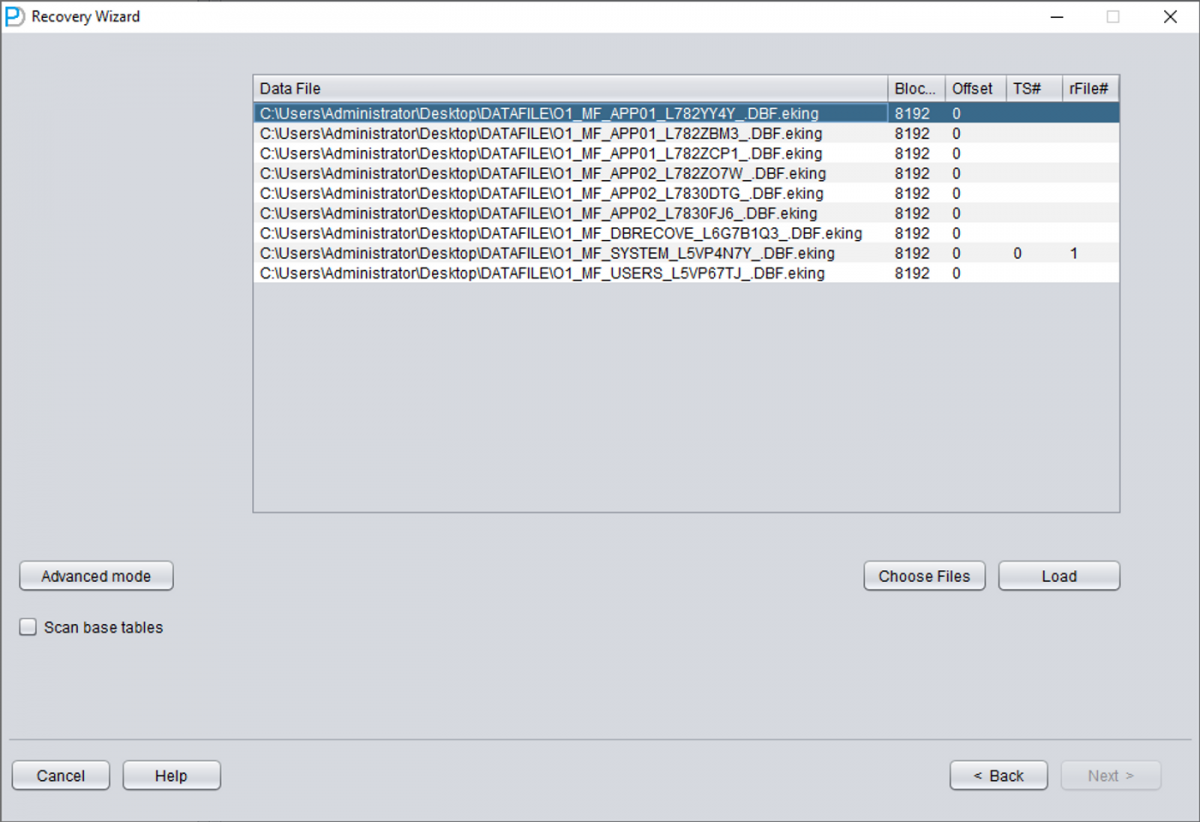
3 Enter TS# and RFILE# for Each File
Add each datafile and enter the correct TS# and RFILE# values from your mapping table.
4 Extract Your Data
If the TS# and RFILE# information is correctly entered and the encryption damage isn't too extensive, you can now browse and extract your data!
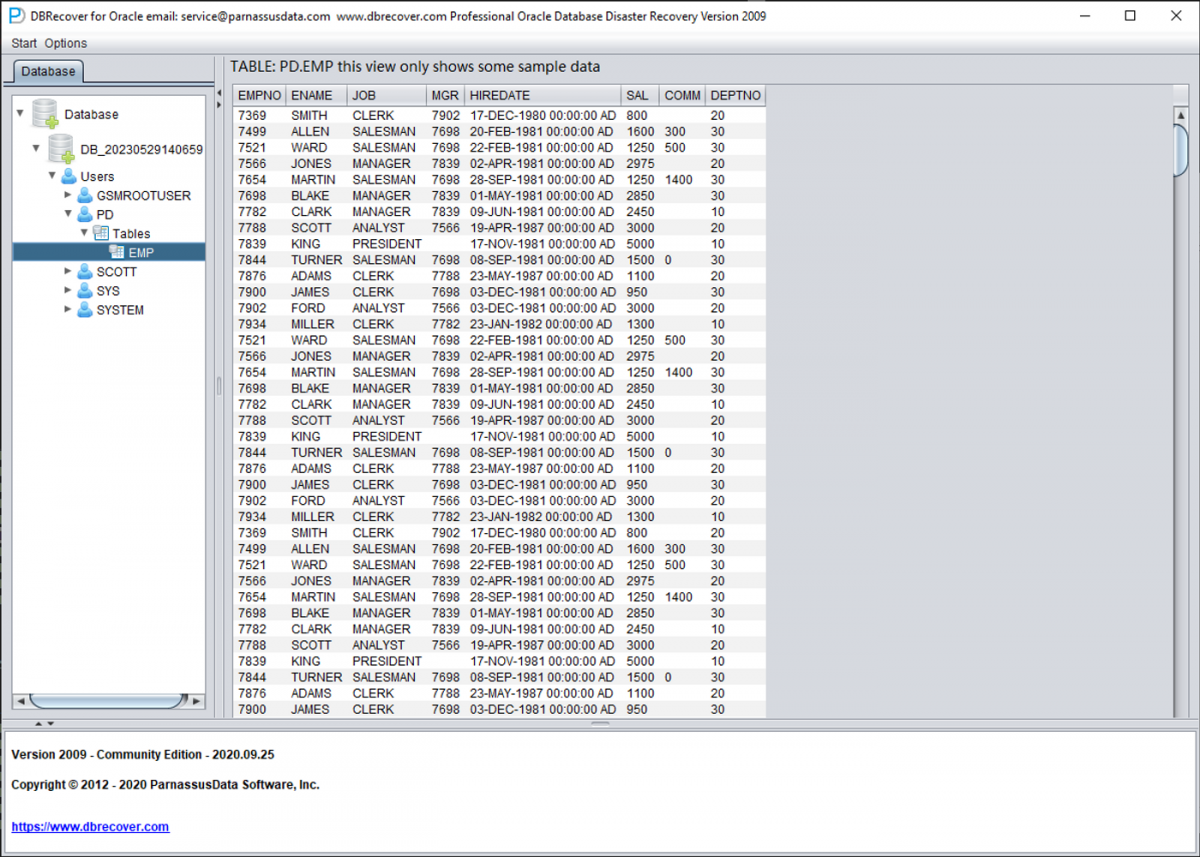
Once files are loaded correctly, you can browse schemas, preview table data, and export recovered data to SQL scripts, CSV files, or directly to a healthy Oracle database using DBRECOVER's DataBridge feature.
6. Next Steps and Support
Ransomware attacks vary significantly in their encryption patterns and severity. While this guide covers the standard recovery process, you may encounter additional challenges:
- Heavy encryption that extends beyond the file header
- ASM disk corruption requiring PRMSCAN module
- Complex data types like LOBs, XMLType, or Spatial data
- Character set issues with international data
Our team has extensive experience with ransomware recovery scenarios. If you encounter difficulties or have complex recovery requirements, please contact us immediately:
[email protected] — Paid Emergency Support Available Separately
Related Resources
- Oracle Ransomware Recovery: Forensic Analysis — In-depth technical analysis of ransomware attacks on Oracle databases
- DBRECOVER for Oracle User Guide — Complete documentation for all DBRECOVER features
- Oracle Recovery Without Backups — Strategies for recovering when no backups are available